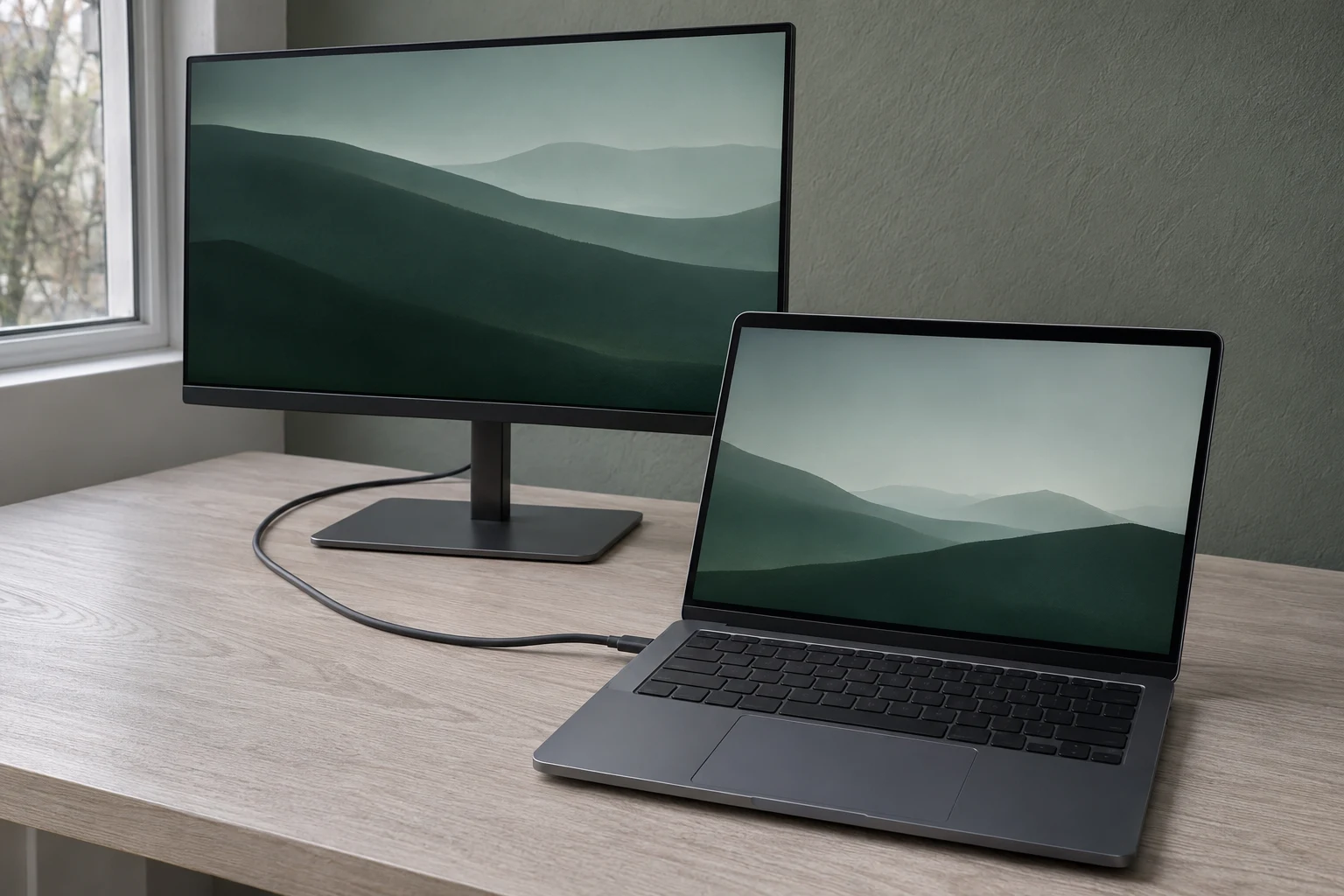
You unplug the wall charger and the external monitor stays on. The picture tells you the laptop is sending video. To see whether the same USB-C cable is also charging it, leave the monitor connected as the laptop’s only possible source of external power. Check the screen mode and battery status, then see what the battery does while you work.
Which connection are you testing?
Keep the monitor plugged into the wall and connect the USB-C cable you already use directly between the monitor and laptop. Disconnect the laptop’s wall charger and any dock or second display that can supply power. If another cable connects the laptop to the same monitor, unplug it from the laptop too. You want the screen and power readings to come from this one connection.
Select the monitor’s USB-C input. If there’s more than one USB-C socket, find the one that accepts video from a computer in the monitor manual. Look at the port diagram for power delivery while you’re there. The socket on the side of a monitor may serve accessories while the computer connects to an upstream port at the back.
Make a note of which port you used on the laptop and the current battery percentage. If the battery is already full or at a charge limit, you can still check whether the laptop recognizes external power. Save the active charging check for when the battery has room to charge.
What video mode is actually running?
Open display settings and select the external monitor. On a Mac, open Displays in System Settings. On Windows 11, select the monitor under Settings > System > Display > Advanced display. Check the refresh rate and the resolution in use against the mode you use for editing or everyday work. If the screen is on at a lower mode than you expected, record that result before changing any settings.
If the monitor stays dark, make sure it’s on the USB-C input and check the laptop manual for video output from the exact port you used. If the manual shows another port supports the monitor’s connection, try that port with the same cable. Then see whether the picture and battery status change together.
Is the laptop receiving power and charging?
Look at the laptop’s battery status with the same cable connected. On a Mac, the battery menu can show that charging is on hold or that a charge limit has been reached. If you need a wattage to compare with the monitor’s documentation, open System Information, choose Power, and look under AC Charger Information. On Windows, check the taskbar battery icon for a charging or slow charger message if one appears.
Once you know external power is recognized, leave the same display mode in place and do a short stretch of your usual work. If the battery has room to charge, compare its percentage before and after. An increase while the monitor is still displaying video confirms both jobs were happening. A steady reading with charging on hold can be expected. If the battery falls repeatedly during your usual workload, even though external power is recognized, that connection may supply less power than the laptop is using.
What should you change for the next test?
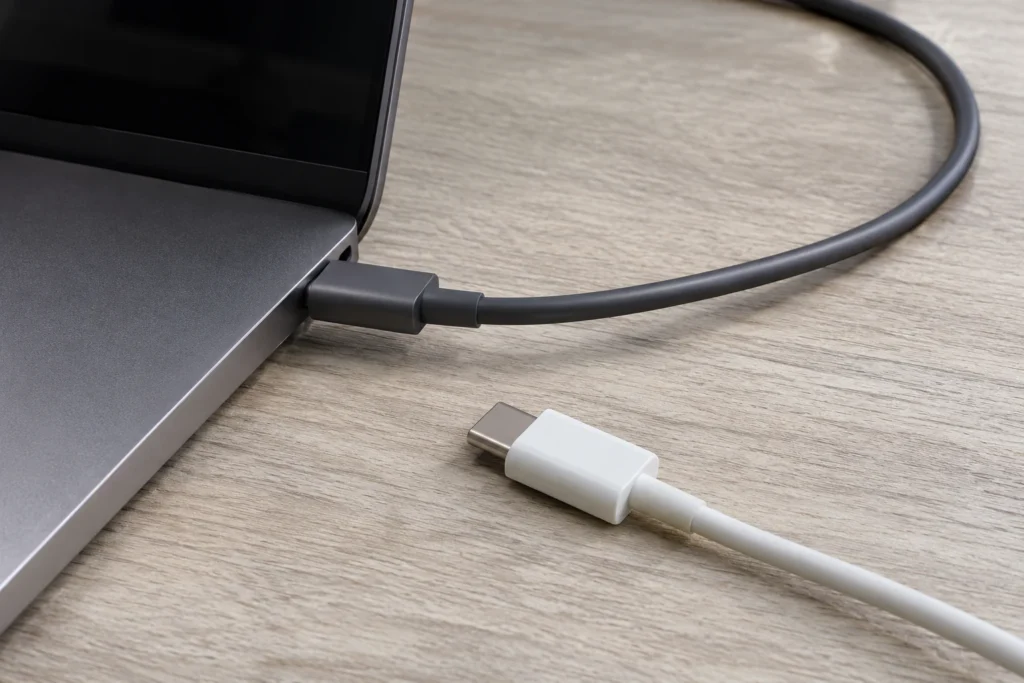
If video works and the laptop shows no external power, check whether the monitor lists USB Power Delivery on that input and whether your laptop accepts charging there. If power works and the display remains dark, check video support at both ends. When you have a cable that previously carried video and power, try it in the same ports and record what changes. If that points to the original cable, check what a replacement USB-C cable needs to support before ordering one.
If the direct connection works, restore any dock or other part of your usual setup one at a time. Repeat the same screen and power checks after each change. Keep the note with the ports, display mode, and battery behavior from the combination that works at your desk.
Related FAQ
Check the actual friction first: sound, light, posture, screen distance, or visual clutter. monitor setup helps only when it solves the part of the workspace that is breaking focus.
Comfort usually decides whether the setup is used consistently. Specs matter, but monitor light bar should first fit the body, room, and work session.
It should earn its space. On a small desk, portable monitor setup needs to reduce friction without adding clutter, cable mess, or another maintenance task.
It should earn its space. On a small desk, laptop stand height needs to reduce friction without adding clutter, cable mess, or another maintenance task.
Check the actual friction first: sound, light, posture, screen distance, or visual clutter. morning work routine helps only when it solves the part of the workspace that is breaking focus.
Before You Go
Paid links- Advertisement -