You rename an item in your WordPress menu, click it, and see a page that seems to show the wrong articles. Before moving any posts, check the menu’s destination, the category assigned to the articles, and the blocks displayed around the list. Each can cause the same confusion and requires a different fix.
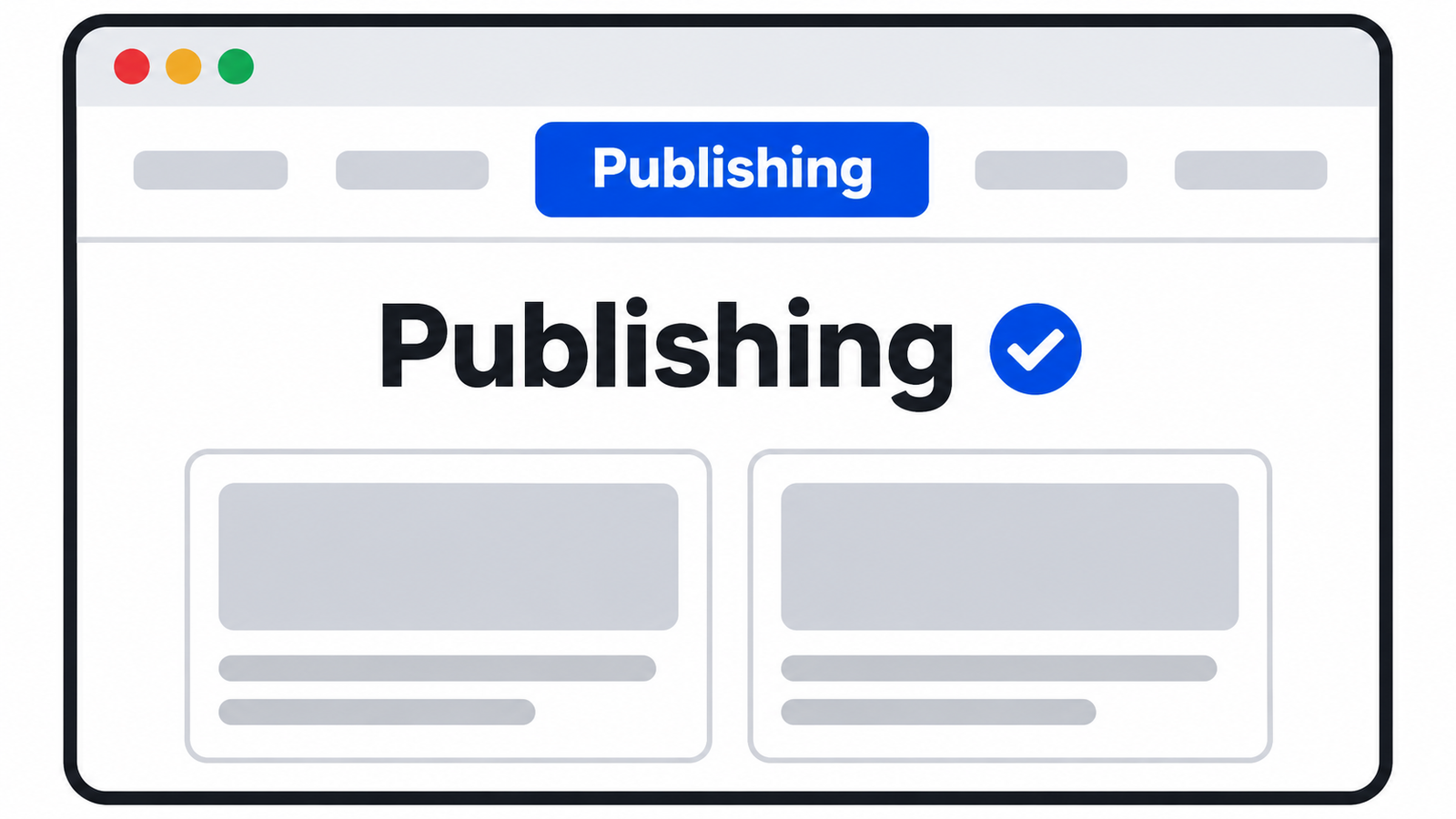
Click the menu and confirm the destination
Open your site while logged out. Click the edited menu item and compare the final address with the category’s View link in Posts → Categories. Test the mobile menu too, especially if it uses a separate menu.
On a classic theme, check Appearance → Menus. The Navigation Label controls the text visitors see. The item’s original source shows which category or page it points to. If the destination is wrong, fix the menu item. If the destination is right, leave its URL alone and check what the page displays.
Compare the article list with the category in WordPress
In Posts → All Posts, filter by the intended category. Compare the first few titles there with the main article cards on the public page. Then look at anything displayed beside or below those cards. A sidebar recommendation, sponsored link, or separate recent-posts block may be drawn from elsewhere on the site.
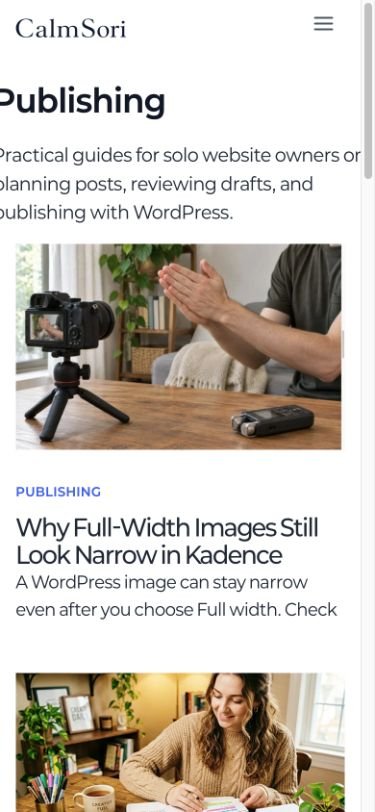
On CalmSori, the Publishing menu opened the intended WordPress category. The category list showed its own article, but the page had no visible heading and a paid-links sidebar sat beside the list. CalmSori added the category heading and removed that sidebar from the main topic archives. The Publishing address stayed the same.
Make the smallest change that fixes the mismatch
Wrong destination. Point the menu item to the intended category and test it in both desktop and mobile navigation.
Wrong article in the main list. Check the post’s category in WordPress. If the category is already correct, check whether a custom list or query block is selecting a different topic before moving any posts.
Correct list, unclear page. Give the archive a visible heading that matches the menu. If a secondary recommendation list competes with the archive, give it a clear label or move it away from the main cards.
Click through from the public menu again after saving. Confirm the final address, one visible heading, and the first few article titles. Then open one article and verify its existing link still works. Add the menu check to your publishing checklist. If you also changed a post slug, follow the WordPress post URL checks separately.
Related FAQ
Start with the task, not the tool. AI plagiarism check workflow is useful when it removes a repeated bottleneck from a real publishing workflow instead of adding another app to manage.
The main risk is tool drift. A creator can spend more time testing AI publishing workflow than publishing, so the tool should be judged by output quality and saved attention.
Check the real use case first. best desk speakers should solve a repeated work, focus, recording, or rest problem before specs or discounts decide the purchase.
Check the real use case first. adjustable laptop stand should solve a repeated work, focus, recording, or rest problem before specs or discounts decide the purchase.
It belongs in a buying guide only when the article explains the decision before the product. Readers should understand why the category matters before seeing recommendations.
Before You Go
Paid links- Advertisement -