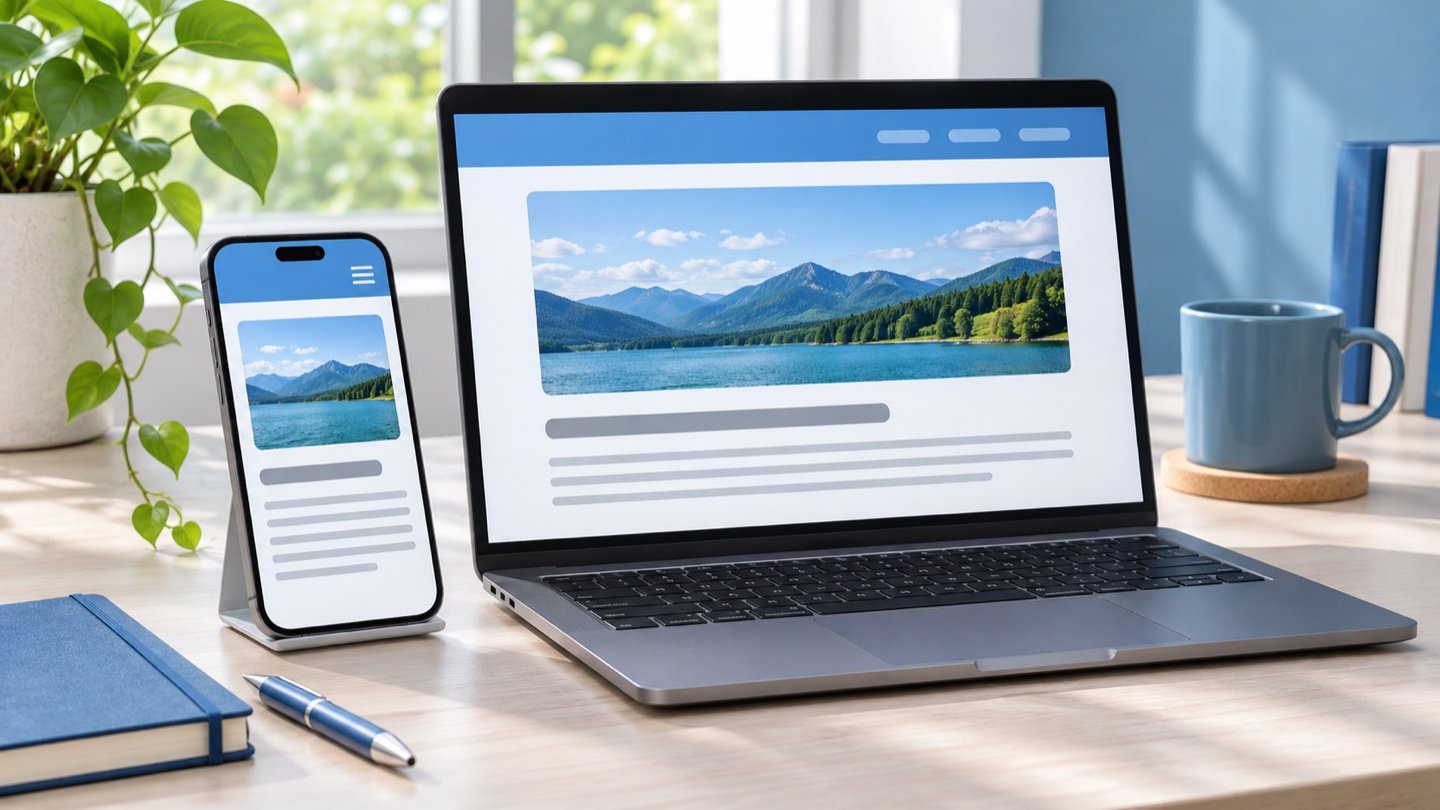
A post can look comfortable in the WordPress editor and still push a table or image past the edge of a phone screen. Start with the editor’s Mobile preview, then open a front-end preview to check how the theme lays out the whole post. After publishing, use the public permalink for the final check.
Start with the editor’s Mobile view
In the WordPress Block Editor, open View in the top toolbar and select Mobile. On versions where the control is labeled Preview instead, look for the device options there. Scroll from the title to the bottom of the draft. Pay particular attention to long headings, comparison tables, embeds, and buttons arranged in a row.
The narrow editor canvas is useful for finding a likely problem while the relevant block is still easy to select. Write down which heading or block sits immediately above the problem. That gives you a place to start when you reopen the draft to fix it.
Open the front-end preview and check for overflow
From the same menu, choose Preview in new tab. This view loads the article inside the theme’s front end. Narrow the browser window or use the device toolbar in your browser’s developer tools. Try more than one phone width, such as 360 and 390 CSS pixels, and start at the top each time.
Scroll past the widest section and try a small sideways swipe. A table can have its own horizontal scroll area. The article title and surrounding text should stay in place when that area scrolls. Look for cropped buttons, a blank strip to the right of the page, and images that cover part of the text or sidebar.
Desktop device tools emulate viewport sizes. Use a real phone for the final check when you can, especially if the page includes an embed, sticky element, or a menu that responds to touch.
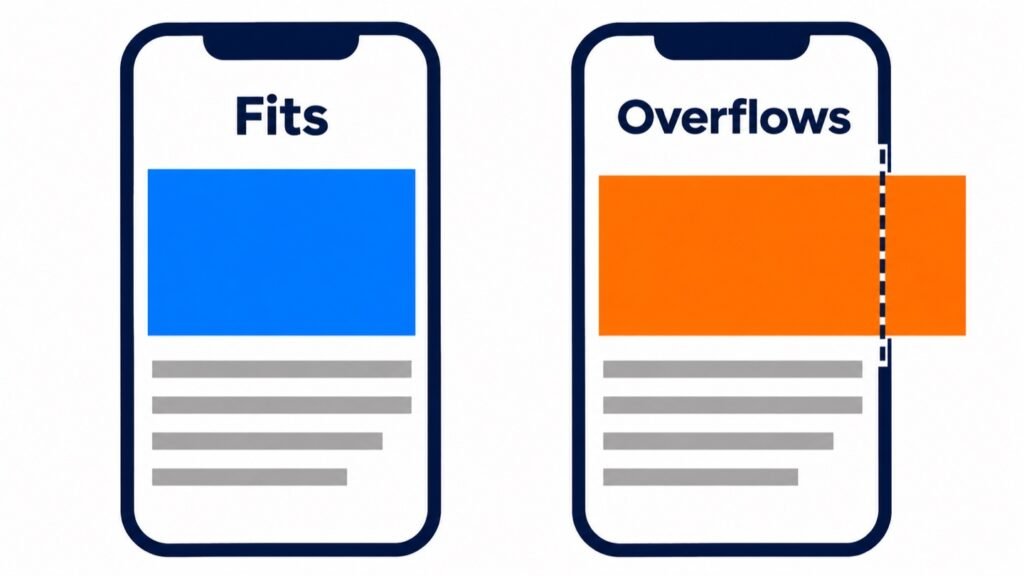
Fix the block that causes the problem
For a side-by-side row of buttons, try stacking them on a narrow screen if the block supports that behavior. If a long address forces a line wider than the screen, link descriptive words in the paragraph instead of displaying the entire URL. For a comparison table with several columns, give readers a way to scroll the table itself or split the comparison into two smaller tables.
If the problem is an image, check the block alignment and any fixed width before changing the post layout. On a Kadence site, check how Kadence handles full-width images to see which theme layout the block is using. Reopen the preview after the change and check the desktop version too.
Check the public link after publishing
Open the public permalink on a phone while logged out. If you scheduled the article, check that a scheduled WordPress post went live first. Scroll to the section you corrected, tap one important internal link, and make sure any sticky banner leaves the text and controls reachable.
If only the public page shows the old layout, verify the URL and confirm that the latest changes were saved. If your site uses a page cache, clear that post’s cached copy and check again. Record the result alongside the article so you know which screen and link you actually tested.
Related FAQ
Start with the task, not the tool. AI product comparison tools is useful when it removes a repeated bottleneck from a real publishing workflow instead of adding another app to manage.
Start with the task, not the tool. AI plagiarism check workflow is useful when it removes a repeated bottleneck from a real publishing workflow instead of adding another app to manage.
The main risk is tool drift. A creator can spend more time testing AI publishing workflow than publishing, so the tool should be judged by output quality and saved attention.
Start with the task, not the tool. AI internal linking tools is useful when it removes a repeated bottleneck from a real publishing workflow instead of adding another app to manage.
Start with the task, not the tool. AI tools for creators is useful when it removes a repeated bottleneck from a real publishing workflow instead of adding another app to manage.
Before You Go
Paid links- Advertisement -