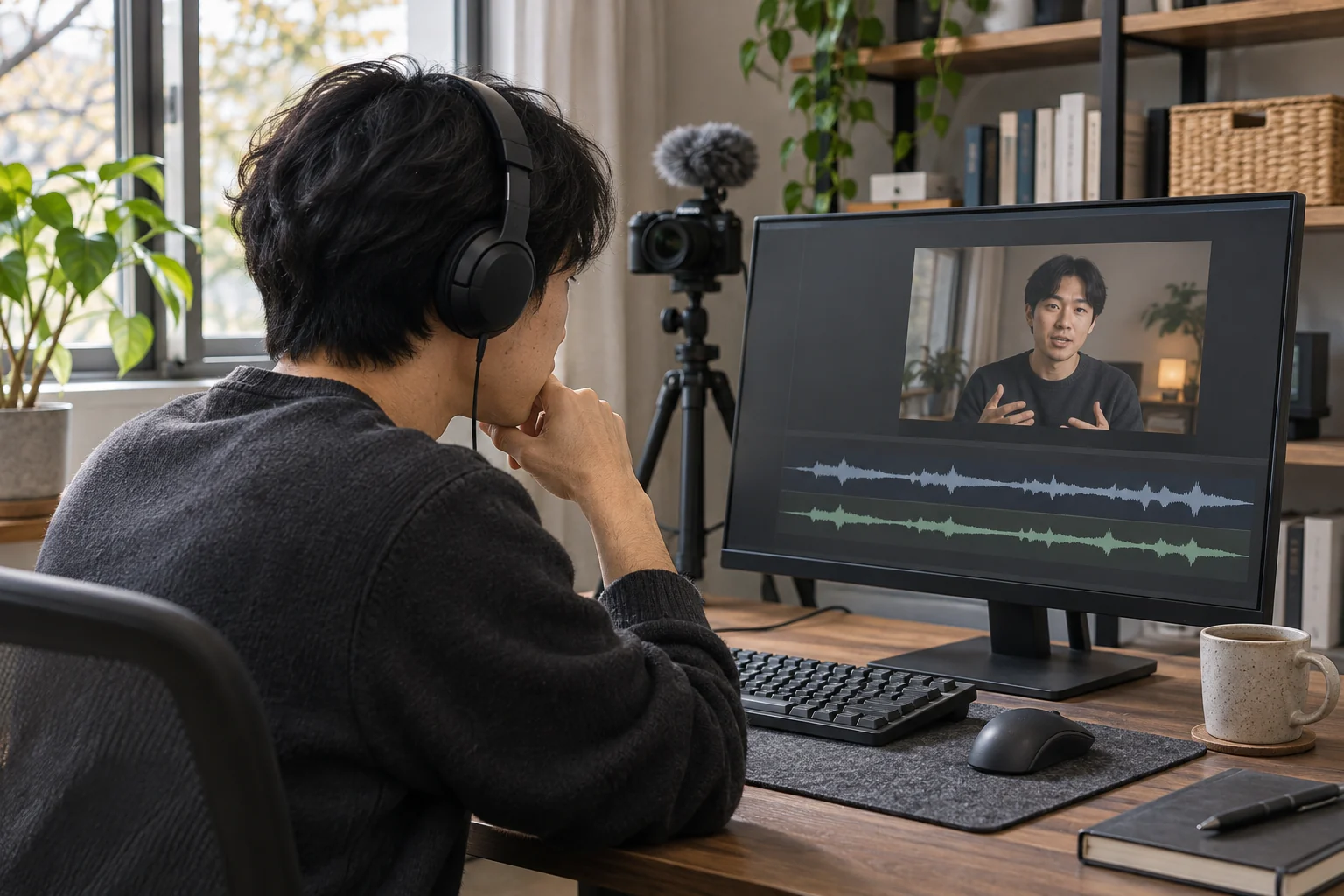
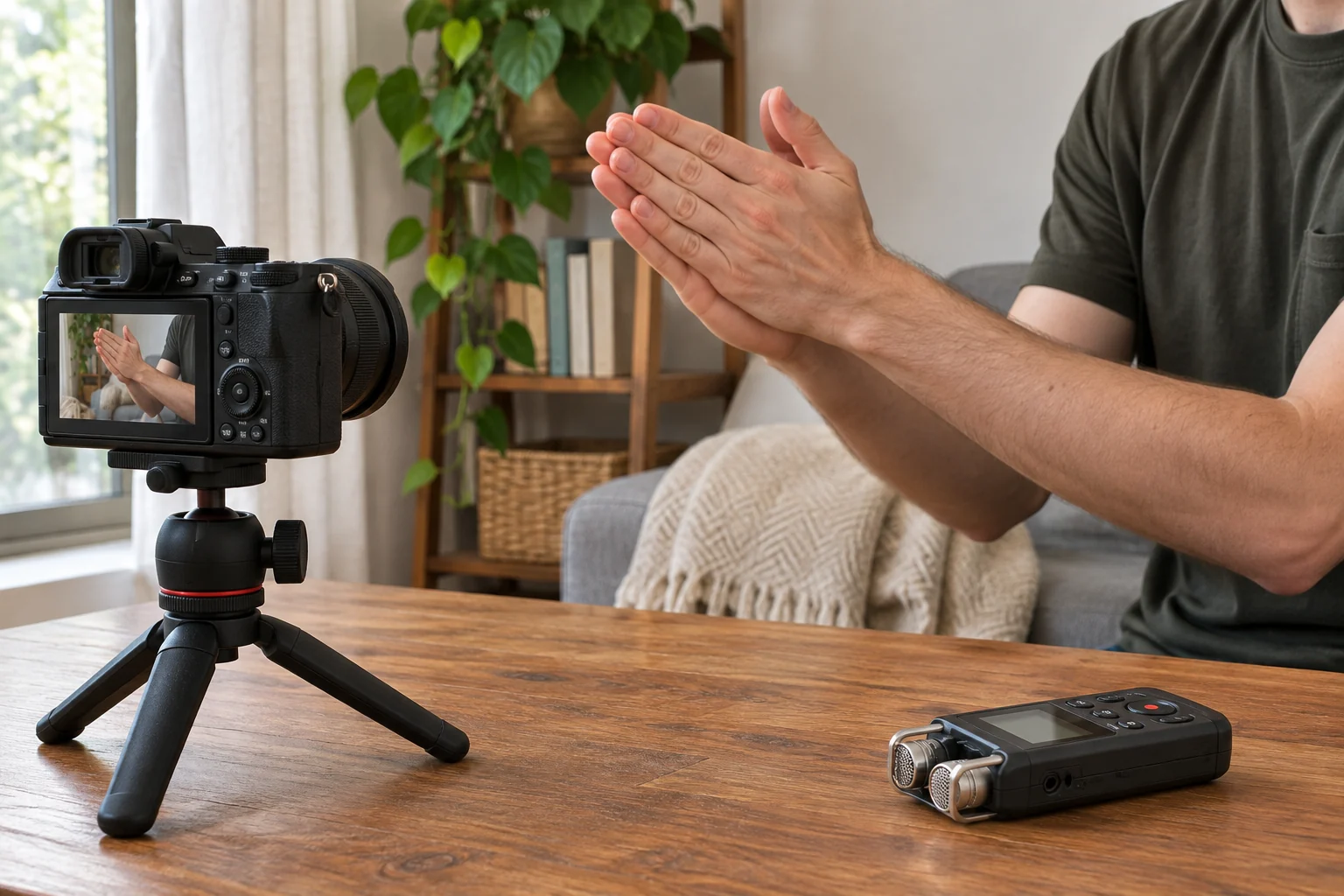
The first line of an interview looks right. Ten minutes later, you hear the speaker finish a sentence while their lips are still moving. Moving the audio clip might fix that sentence and throw off the opening. Before you touch the timeline, check whether the delay stays the same or grows as the video plays.Find a sound with an obvious visual cue near the beginning and another near the end of the same continuous take. A clap, a closing door, or a clearly visible syllable gives you something to compare. Check those two moments on the editing timeline, then play the exported file locally if you already have one. Where the problem first appears tells you which version to work on.
Move the audio when the delay stays the same
If a clap sounds three frames late near the beginning and roughly three frames late near the end, shift the separate audio clip earlier by about three frames. If the sound leads the action, shift it later. Zoom in, use the waveform to find the start of the sound, and line it up with the frame where the action happens. Check both points again at normal playback speed.
If the camera and a separate recorder captured the same take, keep the camera audio available as a reference. You can align the two waveforms by hand or use your editor’s sync feature. In Final Cut Pro, select the clips in the browser, choose Clip > Synchronize Clips, and enable Use audio for synchronization. Play the synced clip with only the intended track audible so a second recording of the same sound does not create an echo.
If the timing changes suddenly at a cut, check the clips on either side of the cut. An audio edit or a moved clip can affect just one section. Align that section and check the next edit before making any change to the full track.
Check the source when sync drifts over time
If the opening lines up and the end is late, compare the source clip and the timeline. Open the original camera file in a local player and check its own audio at both cues. If that file plays in sync, bring it into a fresh timeline and test it before adding effects, changing clip speed, or replacing the camera audio. This gives you a clean comparison with the edit that drifted.
For phone footage or a screen recording, check whether the source uses variable frame rate. Frame intervals can vary, and some editing workflows may interpret that timing differently. If the original plays correctly and the drift appears in your editor, try making a constant-frame-rate copy of the affected clip. Choose a rate appropriate for the footage and project, keep the original, and check the same two cues in the copy before replacing anything in the edit.
When a camera and separate recorder start together and diverge steadily, their recording clocks can be a factor. Compare the camera’s reference audio and the recorder’s audio at two points in the same take. If the gap grows consistently, try a small duration adjustment on a copy of the recorder track with pitch preservation enabled. Align the first cue again, then check the middle and end for both timing and sound quality. If the gap jumps or varies irregularly, inspect cuts and dropped sections before stretching the track.
Play the export before replacing the upload
An editing preview can hesitate under load. Export a test and play it in a local player with the computer speakers or wired headphones. For a steady offset, a short passage around the problem is enough to test the change. For drift, export a range that includes both cues and the time between them. A few seconds taken from the end can show the symptom without showing how it developed.
If the local export is in sync and the uploaded video seems late, play the same passage in another browser or on another device. When you deliver through Drive, compare the shared preview with a fresh download of the exact file. For YouTube, Google also recommends checking that the finished audio and video tracks have the same duration. Review the end of the export for a gap or an unintended audio tail before replacing the upload.
Give the corrected file a distinct name, then play the opening and the last section with visible speech before sharing it. For the next long take with a separate recorder, clap once at the start and again before stopping. Those two cues give you a way to spot drift before you make the first cut.
References: Apple Final Cut Pro User Guide (https://support.apple.com/en-us/guide/final-cut-pro/verc1fabc30/mac), HandBrake documentation (https://handbrake.fr/docs/en/1.7.0/technical/frame-rates.html), and YouTube Help (https://support.google.com/youtube/answer/58134).
Related FAQ
Check the real use case first. headphones for sleeping should solve a repeated work, focus, recording, or rest problem before specs or discounts decide the purchase.
Check the real use case first. best desk speakers should solve a repeated work, focus, recording, or rest problem before specs or discounts decide the purchase.
Check the real use case first. adjustable laptop stand should solve a repeated work, focus, recording, or rest problem before specs or discounts decide the purchase.
Check the real use case first. webcam should solve a repeated work, focus, recording, or rest problem before specs or discounts decide the purchase.
Check the real use case first. monitor arm should solve a repeated work, focus, recording, or rest problem before specs or discounts decide the purchase.
Before You Go
Paid links- Advertisement -