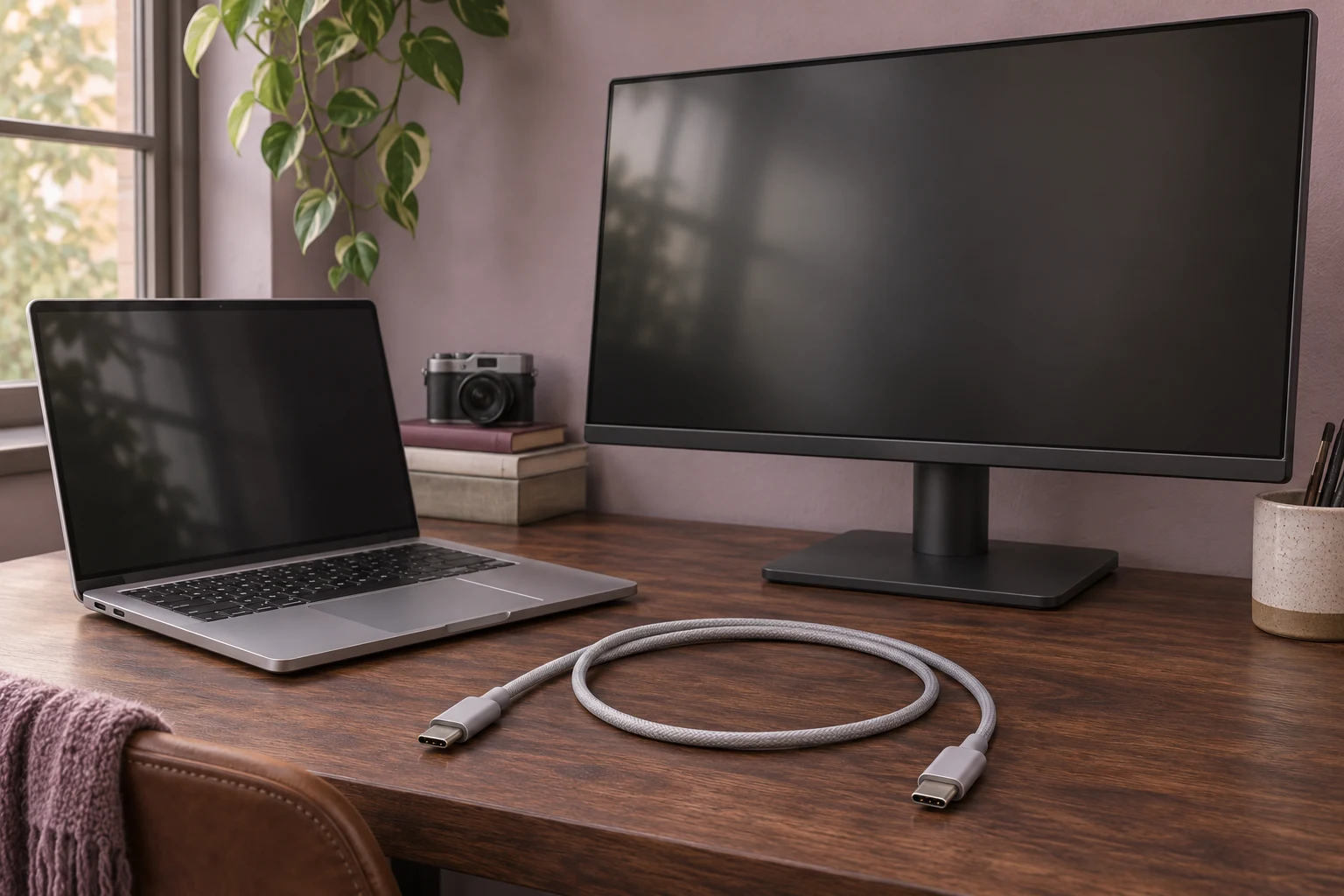
The replacement cable clicks into the same two ports. The laptop starts charging, but the monitor stays dark. Before buying a USB-C cable for a laptop and monitor, write down the screen mode you want, the charging wattage you need, and the length that reaches both ports without pulling. Then look for all three on the manufacturer’s page for the exact cable you plan to order.
What does the cable have to carry to the screen?
Start with the ports you’ll actually use. Check your laptop’s manual for video output from that USB-C port and your monitor’s manual for the video input. Look for DisplayPort Alt Mode if your monitor uses it, or the Thunderbolt connection specified by the display maker. A monitor with several USB-C sockets may take video through just one of them. Dell’s U2723QE, for example, lists a USB-C upstream port with DisplayPort 1.4 Alt Mode and up to 90 W of power delivery, alongside other USB-C sockets with different roles.
Write down the resolution and refresh rate you want. If you edit on a 4K monitor at 60 Hz, look for documentation that supports that mode through the chosen ports and cable. A listing that only says “4K” leaves the refresh rate open. If your monitor also acts as a USB hub, check whether its manual lists different display limits when you prioritize faster USB data. That setting can matter when an external drive or card reader also connects to the monitor.
Read the cable maker’s video specification alongside the manuals. A listing that provides only charging wattage leaves the display question unanswered. Look for explicit video support for your connection type and screen mode. If either device’s chosen port lacks the required display support, resolve that first.
How much charging power has to pass through it?
Check the monitor’s power delivery rating for the video input and the laptop maker’s charging guidance for your model. If the monitor can supply 90 W and you intend to use all 90 W, choose a video-capable cable rated for at least 90 W. A 60 W cable cannot carry that full allowance. A higher-rated cable still leaves a 90 W monitor with a 90 W ceiling, and the laptop may draw less.
If your laptop needs more power during an edit than the monitor can deliver, plan for its separate charger while you work. For a desk where a single cable has to handle both jobs, use the monitor’s documented output to decide whether that setup can cover your normal workload before paying for the cable.
How long should the replacement cable be?
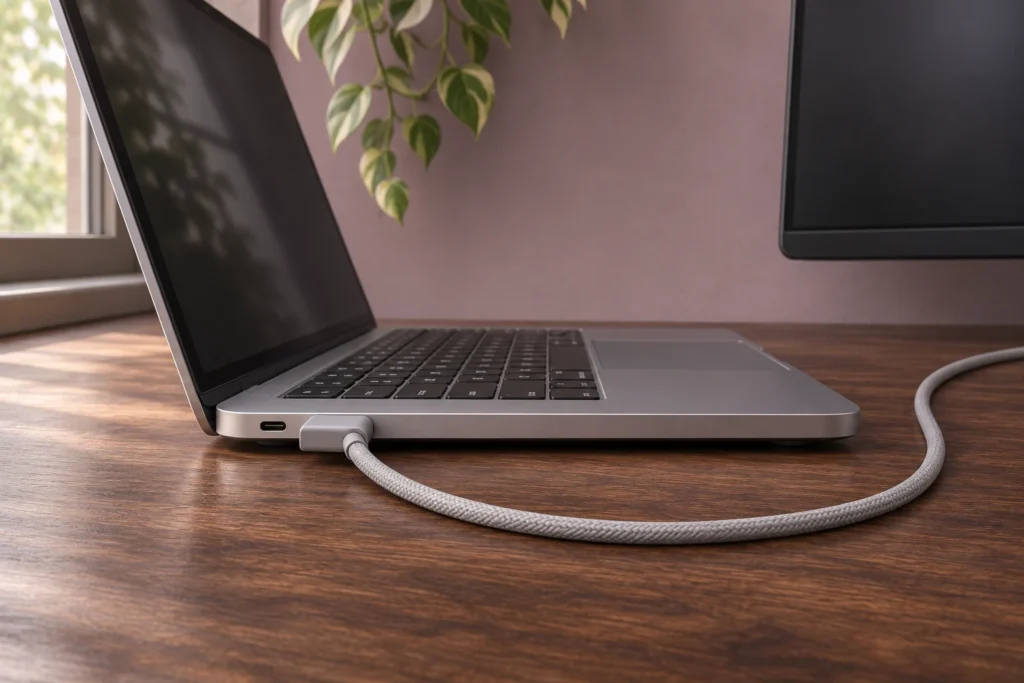
Measure along the route the cable will take. Start at the monitor’s video input, follow the stand or desk edge if that’s your route, and finish at the laptop port. Leave enough room for the connector body at both ends and a little slack when you open the laptop or move it aside. The route can be longer than the space you see between the two devices.
Compare the specs for the length you’re about to order. A product family may offer several lengths or variants on one page. Apple, for example, documents DisplayPort video and charging up to 100 W for its 1.8 m Thunderbolt 4 Pro Cable. Use that combination of length, video capability, and power rating as a model for what to check in any listing.
If the connector needs to pass through a stand or clip, measure the plug housing as well as the route. Check how the cable will rest after you unplug the laptop if you’ll use the same connection every day.
What should you check when it arrives?
Connect the laptop directly to the monitor with the new cable. Confirm that the display settings show the resolution and refresh rate you bought it for. If the monitor also charges the laptop, check the laptop’s charging status with any separate charger disconnected and while doing your usual work. An image on screen and a charging icon verify different parts of the setup.
Open the laptop lid or move it to the position you use on calls. If the connector pulls sideways or the cable goes taut, adjust the route while you can still test the fit. Keep the cable if it delivers your usual screen mode and charging behavior from the place you actually work.
Related FAQ
Check the real use case first. monitor arm should solve a repeated work, focus, recording, or rest problem before specs or discounts decide the purchase.
Check the real use case first. adjustable laptop stand should solve a repeated work, focus, recording, or rest problem before specs or discounts decide the purchase.
Avoid buying from a list before defining the problem. portable laptop stand should be chosen after the room, desk, workflow, and budget are clear.
Price matters, but comfort and fit decide whether best monitor light bar will be used every day. A cheaper item that solves the real problem can be better than a premium product that does not fit the setup.
Price matters, but comfort and fit decide whether portable monitor will be used every day. A cheaper item that solves the real problem can be better than a premium product that does not fit the setup.
Before You Go
Paid links- Advertisement -